What Are the Best DNS Servers to Use?
If you’ve ever wondered why your internet seems slow or why certain websites don’t load as quickly as they should, it might have something to do with your DNS server. Choosing the right DNS server can improve your internet experience. But first, let’s break it all down in simple terms.
What Is a DNS Server?
A DNS (Domain Name System) server is like an address book for the internet. When you type a website address (like www.example.com) into your browser, the DNS server translates that address into an IP address (a string of numbers, like 192.168.1.1) so your device can find the website. Without a DNS server, your browser wouldn’t know where to go.
Think of it this way: DNS is what helps you get from the name of a website to its actual location on the internet.
Why Should You Change Your DNS Server?
Your internet service provider (ISP) usually assigns you a default DNS server. While this works most of the time, it might not be the fastest or most reliable. Here are some reasons to consider changing it:
- Faster Internet: Some DNS servers are faster and can speed up your browsing.
- Better Security: Certain DNS servers block malicious websites to protect your devices.
- Access to Blocked Content: Some DNS servers let you bypass regional restrictions.
- More Reliability: High-quality DNS servers are more stable and experience fewer outages.
Best DNS Servers to Use
Here’s a list of the best DNS servers available today, along with their features and addresses:
| DNS Provider | Primary DNS | Secondary DNS | Key Features |
|---|---|---|---|
| Google Public DNS | 8.8.8.8 | 8.8.4.4 | Fast, reliable, easy to set up |
| Cloudflare | 1.1.1.1 | 1.0.0.1 | Focuses on speed and privacy |
| OpenDNS | 208.67.222.222 | 208.67.220.220 | Parental controls and phishing protection |
| Quad9 | 9.9.9.9 | 149.112.112.112 | Blocks malicious domains for safety |
| Comodo Secure DNS | 8.26.56.26 | 8.20.247.20 | Great for added security |
How to Change Your DNS Server
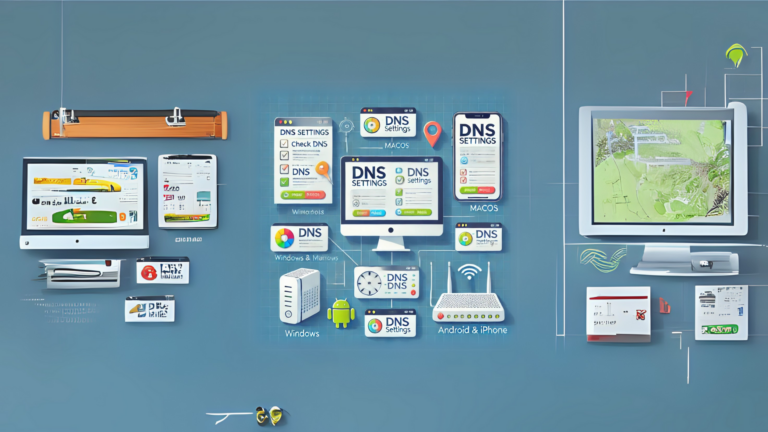
Changing your DNS server is simple and doesn’t require any technical expertise. Here’s a step-by-step guide:
- On Windows:
- Open the Control Panel and go to Network and Sharing Center.
- Click on your active connection (e.g., Wi-Fi).
- Select Properties and then double-click on Internet Protocol Version 4 (TCP/IPv4).
- Choose Use the following DNS server addresses and enter the primary and secondary DNS addresses from the table above.
- Click OK to save changes.
- On macOS:
- Open System Preferences and click on Network.
- Select your active connection and click Advanced.
- Go to the DNS tab and click the + button to add a new DNS address.
- Enter the DNS addresses and click OK.
- On Android:
- Open Settings and go to Network & Internet.
- Tap on your Wi-Fi connection and choose Advanced or Modify Network.
- Scroll to IP settings and switch to Static.
- Enter the DNS addresses in the relevant fields and save.
- On iOS:
- Open Settings and tap on Wi-Fi.
- Tap the “i” icon next to your Wi-Fi network.
- Scroll to DNS and tap Configure DNS.
- Select Manual and add the new DNS addresses.
Which DNS Server Should You Choose?
The best DNS server for you depends on your needs:
- If you want speed, try Cloudflare or Google Public DNS.
- For security, Quad9 or Comodo Secure DNS are great choices.
- If you need extra features like parental controls, OpenDNS might be the best fit.
You can also test different DNS servers to see which one works fastest for you. Tools like DNS Benchmark or Name bench can help you identify the best option for your location.
Final Thoughts
Switching to a better DNS server can make a noticeable difference in your internet experience. Whether you’re looking for faster speeds, better security, or more features, there’s a DNS server out there for you. The process of switching is simple, and you can always switch back if needed. Give it a try and see the improvement for yourself!