
How to analyze DNS logs for security?
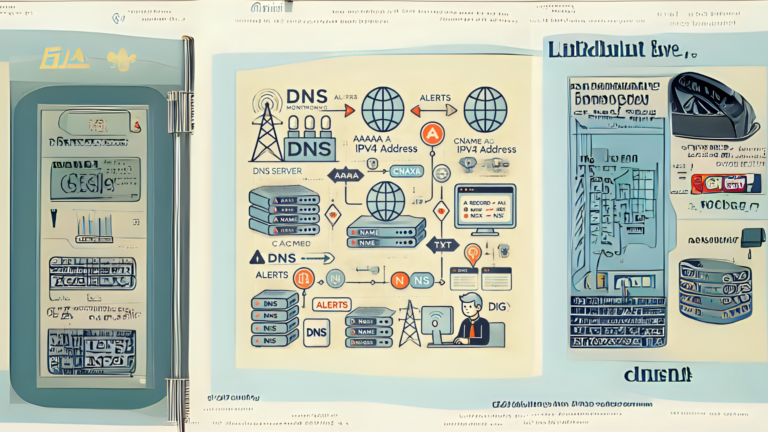
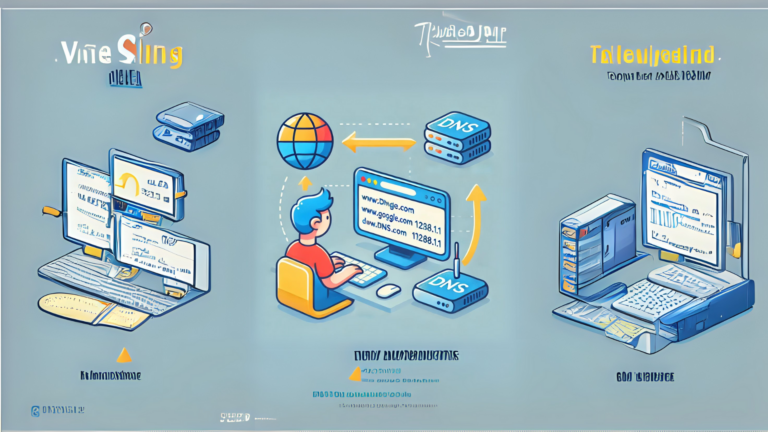
DNS (Domain Name System) is like the phonebook of the internet. It helps translate website names (like www.example.com) into IP addresses that computers use to connect. Monitoring DNS logs is important because unusual activity in these logs can point to security problems. In this article, I’ll guide you through the basics of analyzing DNS logs in simple terms.
What Are DNS Logs?
DNS logs record all the queries sent to the DNS server and the server’s responses. These logs help you track which domains are being accessed and when. By looking at these logs, you can:
- Detect suspicious activities like unauthorized access.
- Identify malware or phishing attempts.
- Monitor network usage.
Why Analyze DNS Logs for Security?
DNS logs can reveal:
- Unusual Patterns: Spikes in DNS requests could mean a botnet or denial-of-service (DoS) attack.
- Access to Malicious Domains: Logs can show attempts to reach known bad websites.
- Data Exfiltration: Hackers sometimes use DNS to steal data from your network.
Tools You Can Use
To make analysis easier, you can use tools like:
- Splunk: Helps search and visualize DNS logs.
- Wireshark: Captures and analyzes DNS traffic.
- Security Onion: Combines multiple tools for network monitoring, including DNS log analysis.
Steps to Analyze DNS Logs
Here’s a step-by-step guide to help you analyze DNS logs:
1. Collect DNS Logs
- Check where your DNS logs are stored. This could be a DNS server, firewall, or network monitoring tool.
- Export the logs in a readable format like CSV or plain text.
2. Understand the Log Format
- Look for key fields such as:
- Timestamp: When the query was made.
- Source IP: The device that made the request.
- Queried Domain: The domain name being accessed.
- Response Code: Whether the request was successful or blocked.
3. Look for Suspicious Domains
- Search for domains that:
- Are long and complex (e.g., random strings).
- Belong to countries you don’t interact with.
- Appear in threat intelligence feeds or blacklists.
4. Check for Unusual Activity
- High Volume of Requests: A single IP making too many DNS requests could indicate malware.
- Repeated Failures: Multiple failed attempts to access certain domains could mean an attack is happening.
- Odd Times: Unusual traffic during off-hours might be worth investigating.
5. Filter Known Safe Traffic
- To focus on potential issues, filter out normal, expected traffic (like common websites).
6. Correlate with Other Logs
- Compare DNS logs with firewall or system logs to get a fuller picture of what’s happening.
Red Flags to Watch For
Here are some common signs of trouble in DNS logs:
| Red Flag | What It Could Mean |
|---|---|
| Requests to known malicious domains | Malware infection or phishing attempts. |
| DNS tunneling activity | Data exfiltration by hackers. |
| Unexpected spikes in traffic | Possible DoS attack. |
| Repeated requests to non-existent domains | Possible misconfiguration or scanning. |
Best Practices
- Enable Logging: Make sure DNS logging is turned on for all servers.
- Regular Monitoring: Don’t wait for a problem; check logs frequently.
- Use Threat Intelligence: Update your tools with the latest lists of malicious domains.
- Train Your Team: Teach your staff how to recognize patterns and potential threats in DNS logs.
Final Thoughts
Analyzing DNS logs might sound complicated at first, but breaking it down into simple steps makes it manageable. By keeping an eye on these logs, you can catch problems early and protect your network from harm. With practice, you’ll get better at spotting unusual activity and keeping your systems safe.