How do I check DNS propagation?
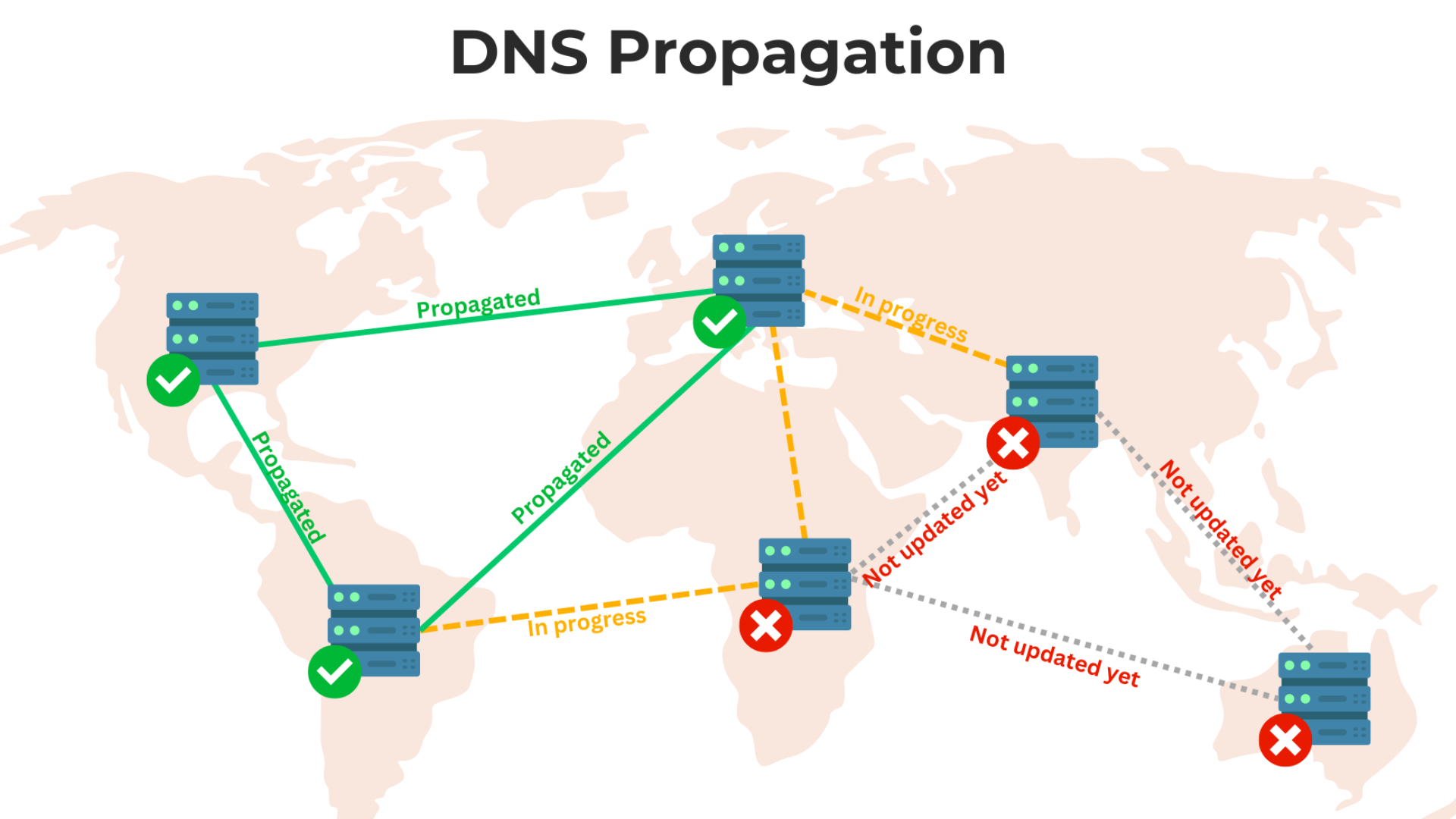
When you make changes to your website’s DNS (Domain Name System) settings, it takes some time for these updates to spread across the internet. This process is called DNS propagation. Knowing how to check DNS propagation helps you confirm whether the changes you made are active globally or if they’re still in progress.
In this article, I’ll guide you through the steps to check DNS propagation in a simple way.
What Is DNS Propagation?
DNS propagation happens when your DNS changes (like updating nameservers or modifying DNS records) are shared with DNS servers worldwide. These changes don’t update everywhere instantly because different servers update at different times. The propagation process can take a few minutes to up to 48 hours.
Why Should You Check DNS Propagation?
Here’s why checking DNS propagation is important:
- To ensure your website is accessible worldwide.
- To confirm your DNS changes are working as expected.
- To troubleshoot issues if your website isn’t loading correctly.
Methods to Check DNS Propagation
There are several ways to check DNS propagation. Let’s go over the simplest methods you can use.
1. Use Online DNS Propagation Checkers
Online tools are the easiest way to check DNS propagation. These tools show how your DNS records appear in different locations around the world.
Steps:
- Go to a reliable DNS propagation checker, such as:
- Enter your domain name in the search bar.
- Select the DNS record type you want to check (e.g., A, CNAME, MX, or NS records).
- Click on the “Search” or “Check” button.
- Review the results to see which servers have updated and which haven’t.
2. Use the Command Line
If you’re comfortable with basic commands, you can use your computer’s command line to check DNS changes.
Steps (For Windows, Mac, or Linux):
- Open the command prompt (Windows) or terminal (Mac/Linux).
- Use the following commands to check specific records:
- For A records:
nslookup yourdomain.com - For CNAME records:
nslookup -type=CNAME yourdomain.com - For MX records:
nslookup -type=MX yourdomain.com
- Press Enter.
- Check the response to see the DNS information.
3. Clear Your Local DNS Cache
Sometimes, your local computer may still have old DNS information stored in its cache. Clearing your cache allows you to see the updated DNS records.
Steps:
- For Windows:
- Open the command prompt.
- Type:
ipconfig /flushdns - Press Enter.
- For Mac:
- Open the terminal.
- Type:
sudo dscacheutil -flushcache; sudo killall -HUP mDNSResponder - Press Enter.
- For Linux:
- Open the terminal.
- Type:
sudo systemd-resolve --flush-caches - Press Enter.
After clearing the cache, check your DNS changes again.
Factors That Affect DNS Propagation Time
The time it takes for DNS propagation to complete depends on:
- Time-to-Live (TTL) Values: TTL is the duration a DNS record is cached by servers. Shorter TTLs speed up propagation.
- Global Server Updates: Each DNS server updates on its own schedule.
- ISP Caching: Your internet service provider may still be showing old DNS information.
What to Do If DNS Propagation Is Slow
If you’re noticing delays in DNS propagation, here are some steps to take:
- Double-Check Your Settings: Ensure you entered the correct DNS records.
- Contact Your Domain Registrar or Host: They can verify if there are any issues on their end.
- Wait Patiently: Unfortunately, DNS propagation can’t be sped up manually.
Conclusion
Checking DNS propagation is a straightforward process that ensures your website runs smoothly after making DNS changes. Whether you use online tools or your command line, keeping track of DNS updates helps you avoid downtime and troubleshoot effectively.
sekolah tinggi ilmu kesehatan ukpm
kebidanan mitra sejahtera jakarta
akademi analis kesehatan muhammadiyah surabaya
akademi kesehatan lingkungan sumsel
akademi kebidanan arta kabanjahe
akademi kebidanan nusantara medan
akademi kebidanan delhus delmed
akper harapan mama deli serdang
akademi kebidanan bunga bangsa aceh