How to block malicious domains using DNS?
When browsing the internet, it’s important to protect your device from harmful websites that can cause damage, steal personal information, or infect your device with malware. One effective way to block malicious domains is through DNS (Domain Name System) filtering. This article will walk you through how to block these harmful websites using DNS, in simple and easy-to-understand terms.
What is DNS?
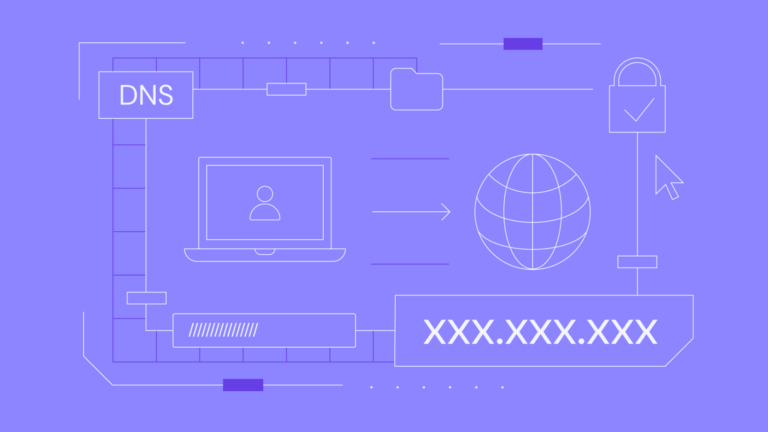
Before diving into the steps, let’s quickly understand what DNS is. DNS is like the internet’s phone book. When you type a website’s name (like www.google.com) into your browser, DNS helps translate that name into an IP address, which your computer uses to connect to the website. Without DNS, you would need to remember the IP address of every website you want to visit.
Why Block Malicious Domains?
Some websites are harmful, either by design or by accident. They may try to:
- Install viruses or malware on your device
- Steal sensitive information, such as passwords or credit card numbers
- Phish for personal details through fake websites
By blocking access to these malicious domains, you protect yourself from these threats.
How DNS Helps Block Malicious Domains
DNS filtering works by blocking access to websites that are known to be harmful. When a website is flagged as malicious, it is added to a list that your DNS provider can check. If you try to access a malicious site, your DNS service will stop the connection before it even happens, preventing any harmful content from reaching your device.
Steps to Block Malicious Domains Using DNS
Here’s a simple, step-by-step guide on how to block malicious domains by changing your DNS settings:
1. Choose a DNS Service Provider
You need to pick a DNS service that offers protection against malicious websites. Some well-known DNS providers with built-in security features are:
- Google DNS: A free service that focuses on speed and security.
- Cloudflare DNS: Known for privacy and fast response times.
- OpenDNS: Offers more security features, including customizable filtering.
2. Change DNS Settings on Your Device
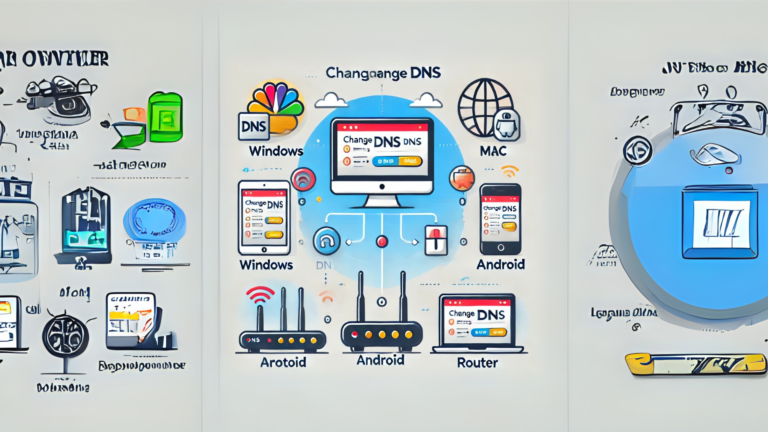
To use DNS filtering, you’ll need to change your device’s DNS settings. Here’s how you can do that on different devices:
On Windows:
- Go to Control Panel > Network and Sharing Center > Change adapter settings.
- Right-click on your network connection and select Properties.
- Select Internet Protocol Version 4 (TCP/IPv4), then click Properties.
- Select Use the following DNS server addresses.
- Enter the DNS addresses provided by your chosen service:
- Google DNS: Primary: 8.8.8.8, Secondary: 8.8.4.4
- Cloudflare DNS: Primary: 1.1.1.1, Secondary: 1.0.0.1
- OpenDNS: Primary: 208.67.222.222, Secondary: 208.67.220.220
- Click OK to save the changes.
On macOS:
- Go to System Preferences > Network.
- Select your active network connection and click Advanced.
- Under the DNS tab, click the + button to add new DNS servers.
- Enter the DNS addresses as listed above.
- Click OK and then Apply.
On a Router:
- Log in to your router’s settings page (usually by typing 192.168.1.1 or 192.168.0.1 into your browser).
- Find the DNS settings section (usually under the Network or Internet Settings tab).
- Change the DNS settings to your preferred service’s addresses.
- Save and restart your router for the changes to take effect.
3. Enable Filtering Features (If Available)
Some DNS providers, like OpenDNS, offer additional settings for filtering out malicious websites. This may include:
- Web content filtering: Blocking categories like adult content, malware, or gambling sites.
- Custom filtering: Allowing you to block specific websites or types of content.
You can usually set these options by logging into your DNS provider’s web dashboard. For example, with OpenDNS, you can create an account, log in, and choose the filtering level you want.
4. Test the Protection
Once you’ve set up the DNS filtering, it’s time to check if it works. You can do this by visiting a known harmful website or one that is flagged by your DNS provider. If everything is set up correctly, you should see a warning page or be redirected, preventing you from accessing the site.
Benefits of Blocking Malicious Domains with DNS
Blocking malicious domains using DNS has several advantages:
- No need for extra software: You don’t need to install any additional programs or apps.
- Protection for all devices: DNS filtering works for every device connected to your network, including phones, tablets, and smart devices.
- Easy to set up: Changing DNS settings is simple and only takes a few minutes.
- Constant updates: DNS services regularly update their lists of malicious domains, ensuring ongoing protection.
Conclusion
Blocking malicious domains using DNS is a straightforward way to protect your devices from harmful websites. By changing your DNS settings to a service that offers security features, you can prevent malware, phishing, and other online threats from reaching your device. With just a few steps, you’ll improve your online safety without the need for complicated software or advanced technical knowledge.